Configure a Stop Loss
A stop loss closes your position automatically if the price moves against you beyond a threshold you set. It runs in the background from the moment your position opens. This page covers how to configure it inside an Order node.
Open the Order node settings
Click the Order node on your canvas to open its settings panel. Scroll to the Close Position If section and turn on the TP/SL toggle.
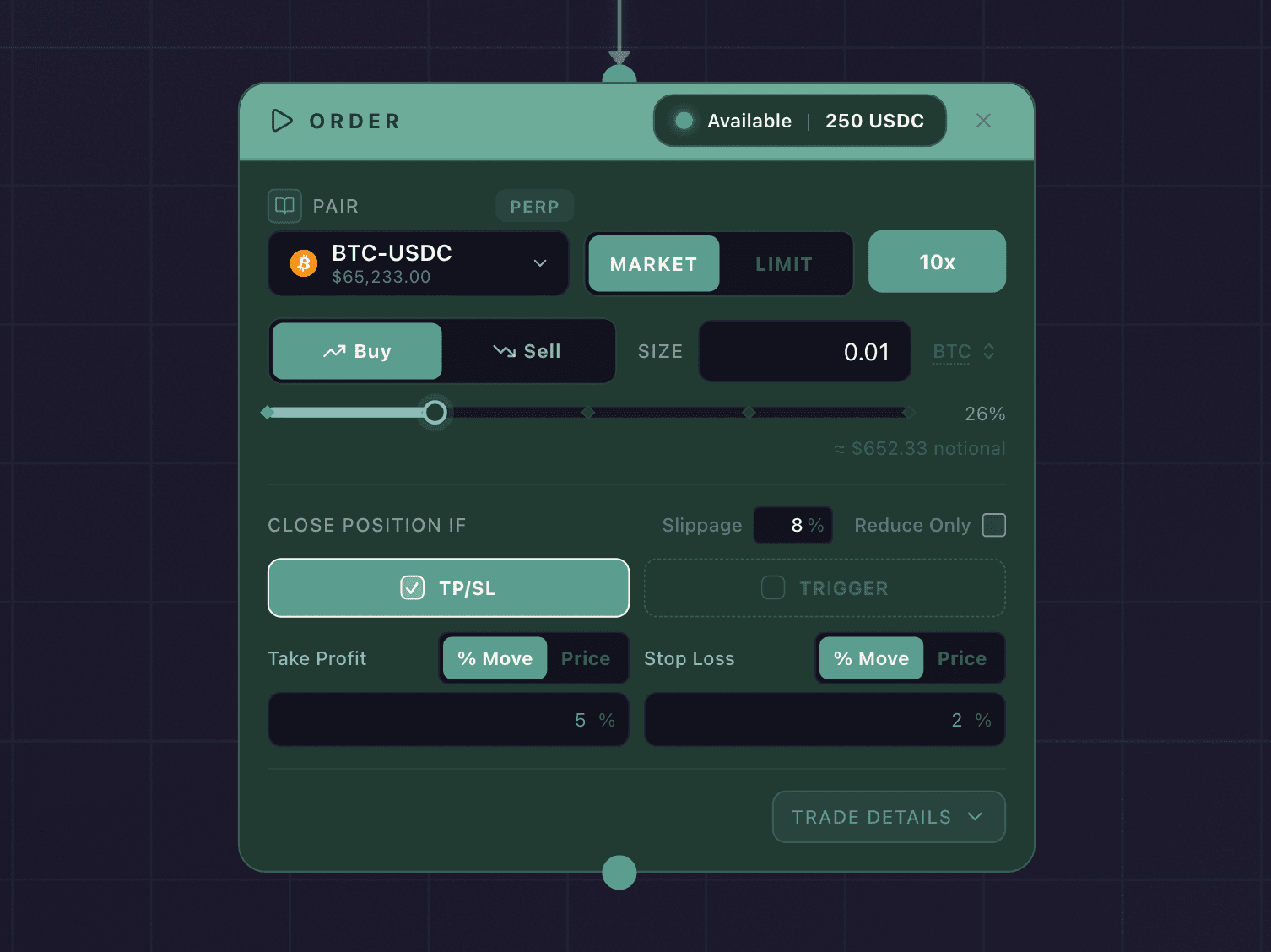
Take Profit and Stop Loss, set as a percentage from entry, with a Trigger condition below.
Set the stop loss
Two options are available:
Price: Enter the exact price at which you want the position closed. If the market reaches this price, the stop triggers.
% Move: Enter a percentage. The stop price is calculated relative to your entry price when the order fills. For example, a 3% stop loss on a long position closes it if the price drops 3% below entry. Keep the stop inside the move that would liquidate the position: at 10x leverage, roughly a 10% move against you exhausts your margin, so a wider stop never gets the chance to act. See Leverage, Margin, and Liquidation.
How the stop closes
When a stop loss triggers, it closes the position with a market order at the next available price. There is no limit option. A stop always exits at market so it gets you out, which means it accepts slippage.
Set a slippage tolerance to limit how far the fill price can move from the stop price.
Tips
Configure your stop loss before deploying. The canvas shows exactly what will run, so confirm the level reads the way you intend before you take it live.
A stop loss is not guaranteed to fill at exactly the stop price. It closes at market, so in a fast or gapping market it fills at the next available price, which can be worse than the level you set.
You cannot change the stop loss on a live strategy. Editing it means cancelling the strategy and redeploying the new version.